







Figma tags (chips) components


Tag and chip design in Figma: interactive labels
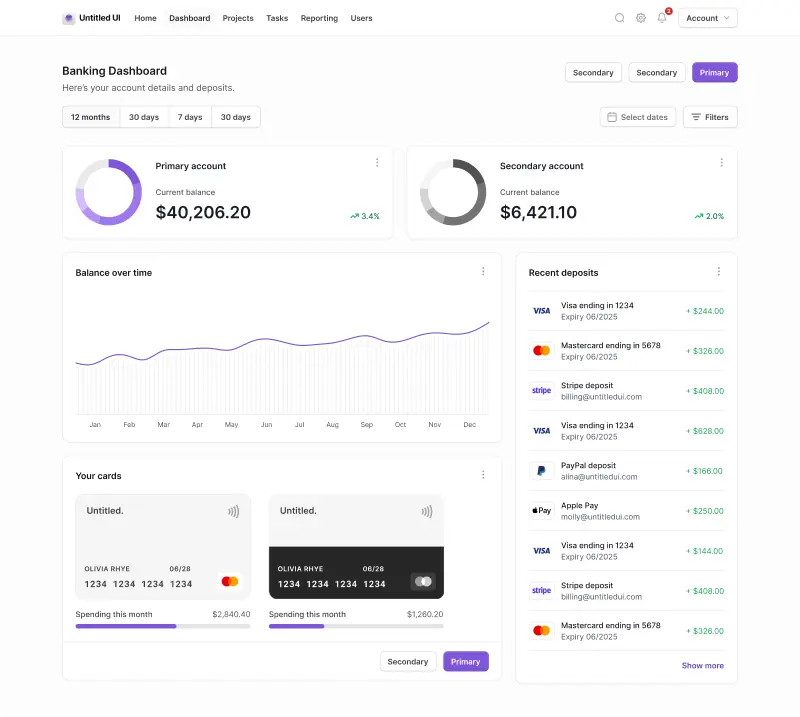
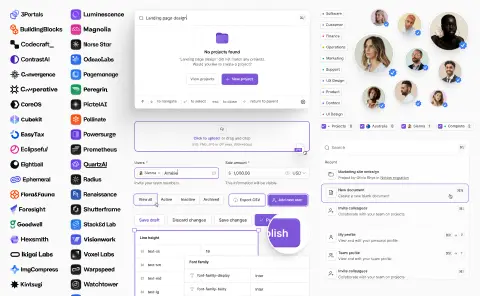
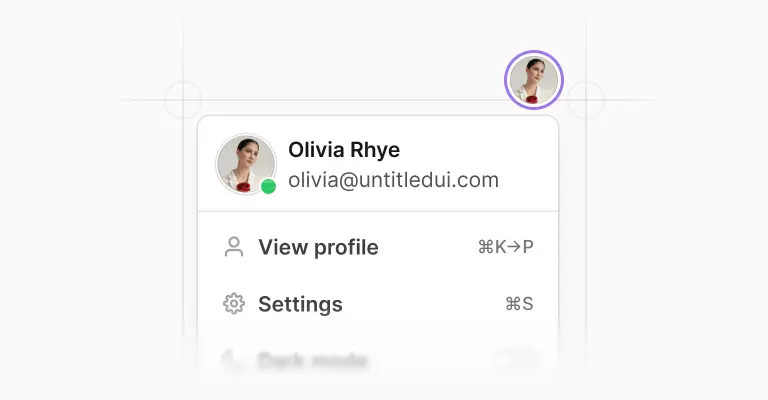
Tags are labels users get to touch. They hold the skills on a profile, the filters on a search page, the recipients in a share dialog, and unlike their read-only cousins, they're added, removed, selected, and dismissed all day long. That constant handling means every small state, from the hover on a close icon to a checked filter, gets exercised by real users daily. That interactivity is exactly what the 4 tag components and 210 variants above are built for.
Tags, chips, badges, pills: sorting out the names
The vocabulary is a mess, so here's the map. Tags and chips are the same thing: interactive elements users manage. Material Design standardised on "chips" and splits them into four jobs (assist, filter, input, and suggestion), while most other design systems say tags.
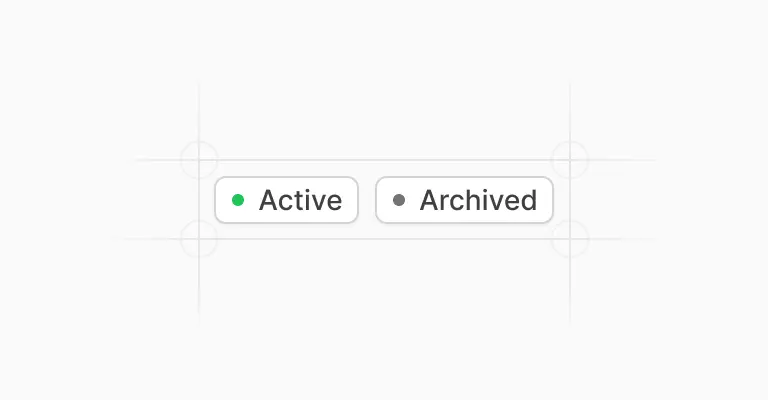
A badge is the read-only sibling that reports status and never responds to a click. "Pill" just describes the fully rounded shape either of them can wear.
Keeping tags and badges as separate components, as Untitled UI does, is what stops "clickable-looking labels that do nothing" from creeping into your product.
Anatomy and variations
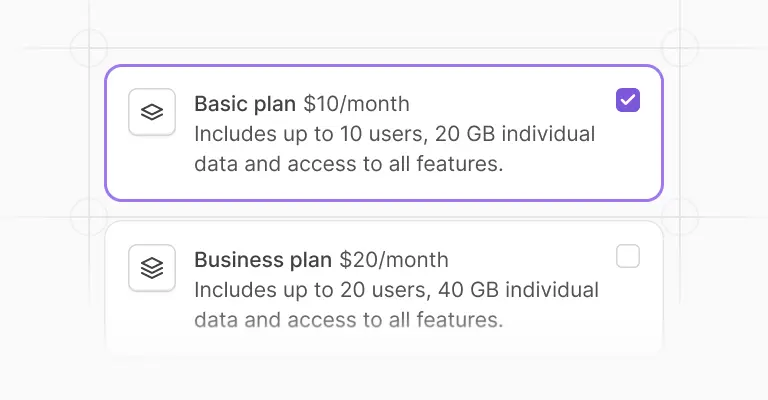
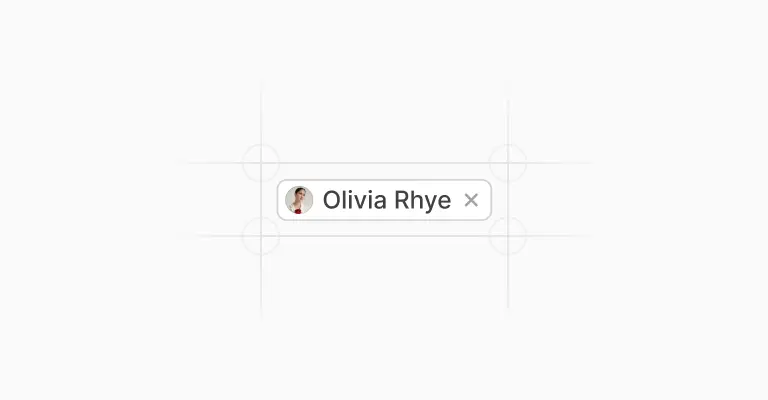
Each tag comes in three sizes with a set of optional parts: a leading dot for status, a leading avatar for people, a country flag for locale, a trailing count for grouped values, and a trailing X close for removal. There's also a leading checkbox version for selection patterns, and everything is built with Auto Layout so a tag grows with its label instead of truncating it.
The close X, count, and checkbox are their own sub-components with hover, focused, and disabled states, because the small interactive core of a tag is precisely the part that needs real states. A close icon without a hover state feels broken the first time someone tries to remove a filter.
Filter chips and input tags
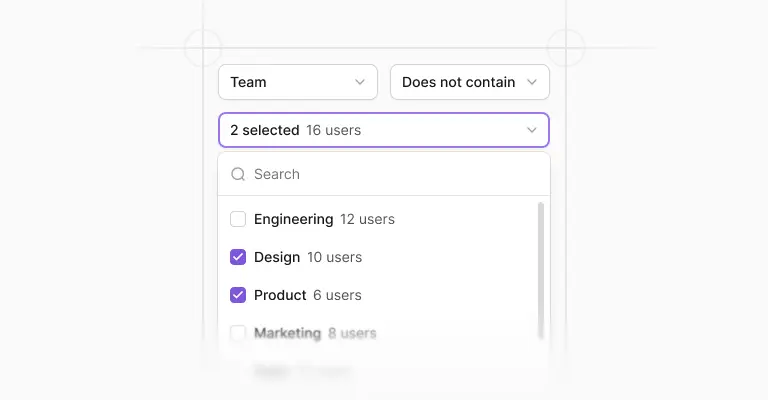
Two jobs cover most tag work. Filter chips let users toggle result sets: the checkbox variants handle this, with checked and unchecked states so a row of filters reads at a glance. Worth deciding deliberately: whether filters apply instantly or in a batch, a tradeoff Nielsen Norman Group has studied; instant suits short lists, batch suits slow queries.
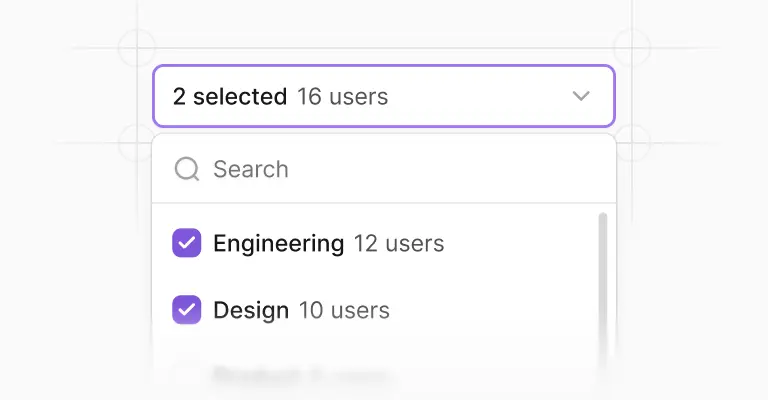
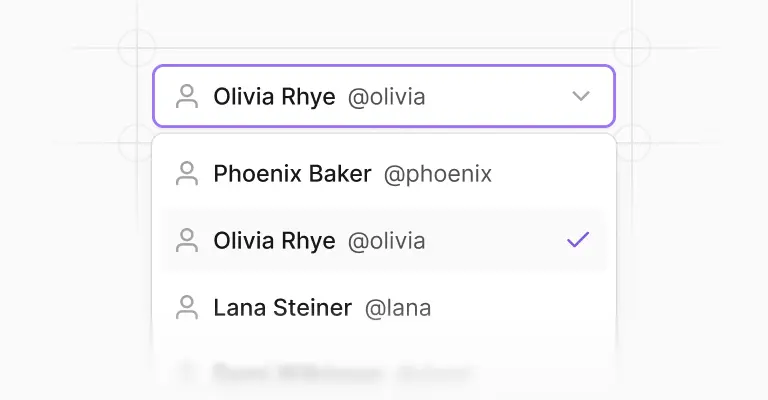
Input tags are the second job: values users type into a field that become removable tokens, which is what the tags variants of the input components, multi-select fields, and select components are for. The tags here match those field versions, so a token looks identical inside and outside an input.
Wrapping, removal, and keyboards
Tag lists grow, so build the container with Auto Layout's wrap so tags flow to the next line instead of escaping the frame; each tag hugs its text and the list handles the rest. On removal, the X is a genuine click target with its own states, and in code it needs keyboard treatment too, so a keyboard user can reach and delete a token without a mouse.
That part is already done for you. Untitled UI React tags are open source, built with Tailwind CSS and React Aria, and mirror these Figma components, with focus management and keyboard removal handled properly.
Frequently asked questions
What’s the difference between a tag and a badge?
Tags are interactive, badges aren't. Users add, remove, select, and filter with tags; a badge just reports status or category and ignores clicks.
If it needs a close X, a checkbox, or a selected state, it's a tag. The two sets share sizing DNA in Untitled UI, so they sit side by side without looking related enough to confuse.
How do I make tags wrap to multiple lines in Figma?
Set the container to Auto Layout with wrapping enabled, and give each tag hug-contents sizing. Tags then flow to the next line as the list grows, exactly like they will in the browser.
It's worth testing your design with 15 tags rather than 3, because the wrapped second line is where spacing mistakes hide.
How do I build filter chips with a selected state?
Use the checkbox tag variants: they carry checked and unchecked states designed as one component, so flipping selection is a variant swap. Wire a "change to" interaction between the two and a row of filter chips becomes clickable in your prototype.
Whether filters should apply instantly or wait for an apply button is a real decision; NN/g's research covers the tradeoff.
Are these tag components included in the free version?
The tag components are part of the paid Untitled UI Figma kit. See pricing for what's included.
If you want to try the design system first, the 100% free Figma UI kit includes core components from the same system, so everything upgrades cleanly later.
Is there a React version of these tags?
Yes. Untitled UI React tags are open source, built with Tailwind CSS and React Aria, and mirror these Figma components, including removable tags with proper keyboard and focus behavior.
Foundation Figma components and styles
Figma base components
Shared Figma assets
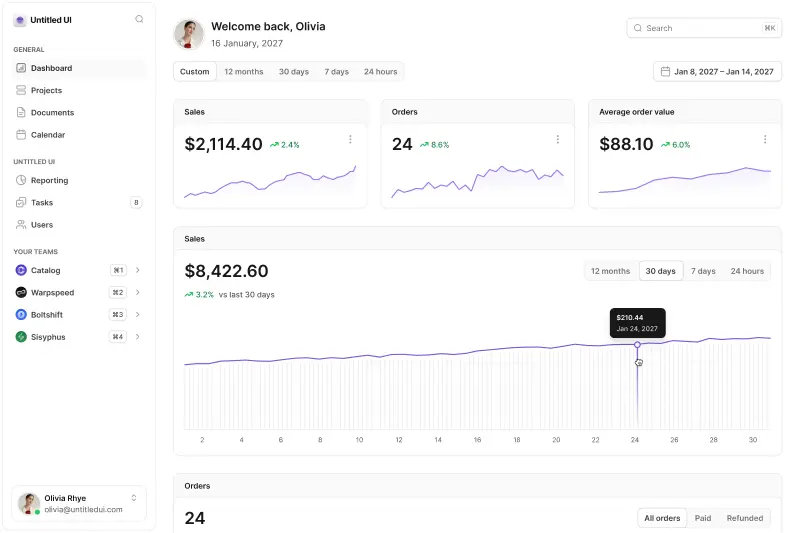
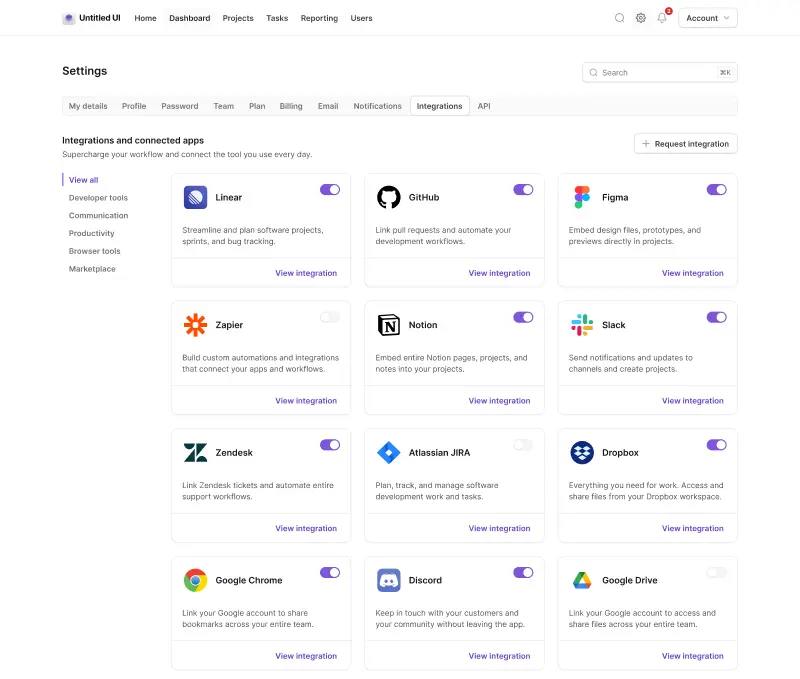
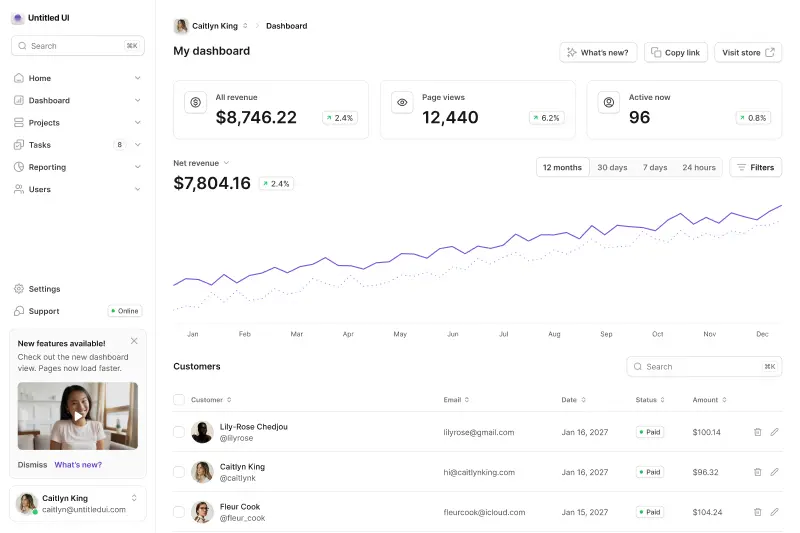
Application UI/Dashboard examples
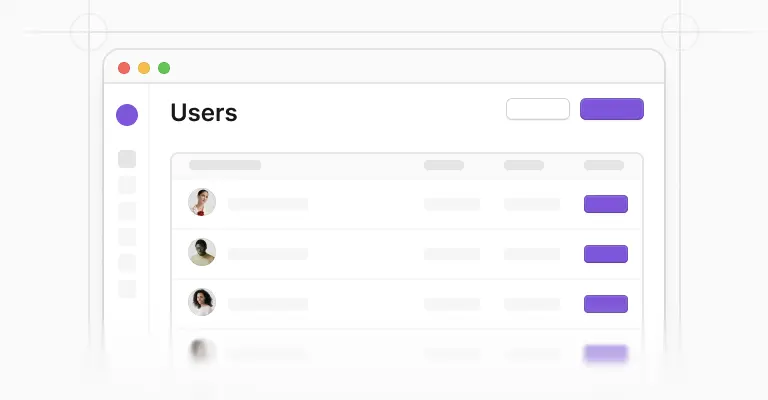
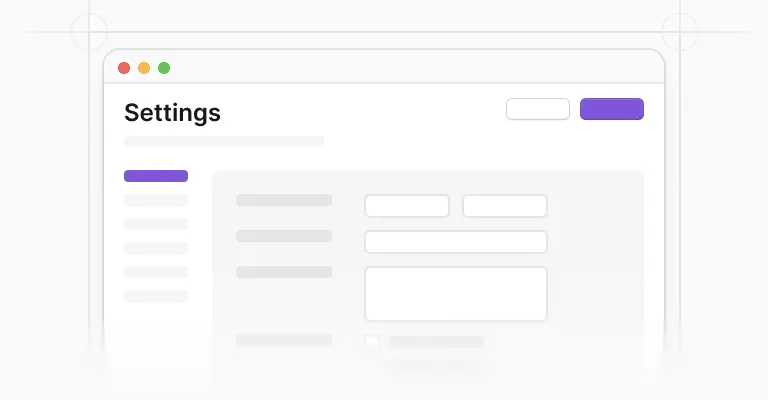
Application UI/Dashboard Figma components
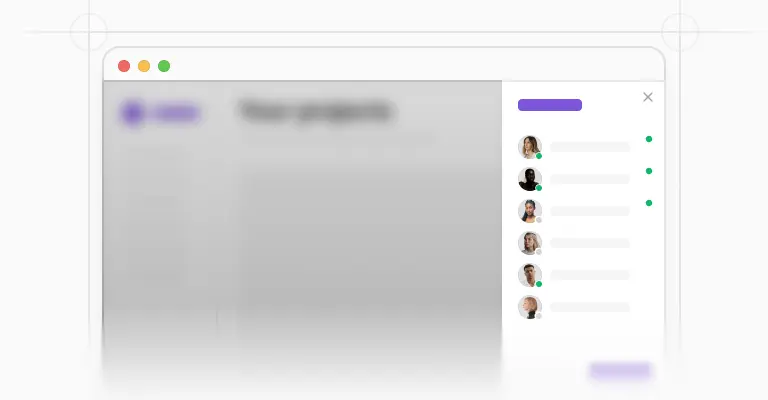
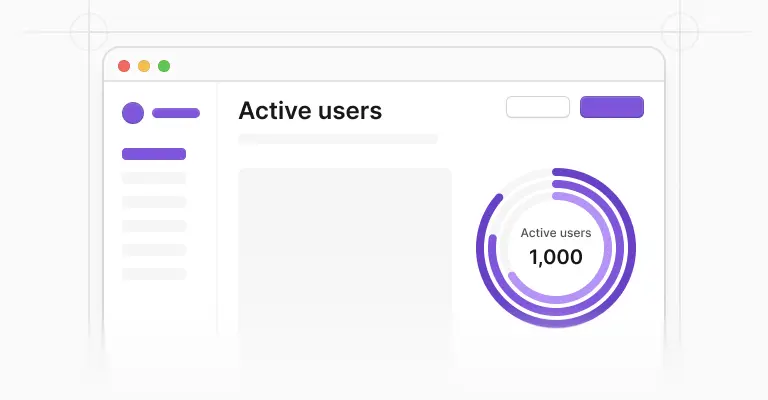
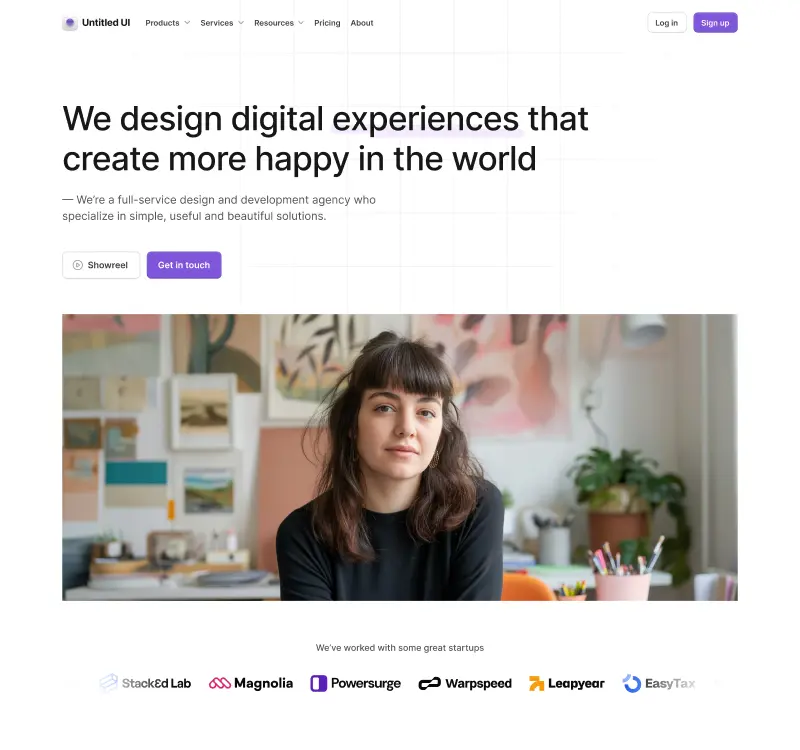
Marketing website examples
What is Untitled UI?


















Untitled UI is the best $ I've spent on my business in a long time. I'm going to keep using it and recommending it to every designer I know.


Over the years we've featured hundreds of UI kits on UXCrush, but Untitled UI is by far the most comprehensive and detailed I've seen yet. A must have for any designer!

I've used all UI kits on the market. I can say without a doubt that the Untitled UI kit is the best on the market. It covers everything a designer needs in a modern and efficient way.

Incredible, and keeps getting better. I’ve tried dozens of UI kits and Untitled UI is the only name you should care about. It stands head and shoulders above the rest.

Such a beautiful, detailed, and extensive UI kit. Untitled UI is the perfect foundation for any project. I highly recommend this huge time saver.

Untitled UI has been an amazing resource that I'm learning to rely upon to spin up ideas in no time. I think I might launch a startup pretty soon by mistake here!

The sheer scale, details, and organization of this kit is mind-blowing. It covers nearly everything a Designer could need in a modern, efficient and systematic way.

I'm super impressed with this. I love poking around in other peoples UI Kits to see how they think. This is probably one of the most comprehensive I've seen.

I'm super excited to use this for quick mockups of ideas in Figma. We're always trying to streamline our design process so we can move fast! Definitely recommend.

Untitled UI is easily the best UI kit I've used so far. It has an insane amount of components that are all incredibly well-built. I don't even know how many hours this will save.

The attention to detail and thought Jordan has put into this UI kit is unparalleled.

Untitled UI is incredibly well-organized and the attention to detail is great. I highly recommend this kit to any designer that wants to create beautiful designs fast.

What an awesome Figma kit... it's an absolute game changer. This is the perfect base for any design system. The size and attention to detail is next level.

We've been using Untitled to build Himalayas 2.0 and have finished a complete redesign in just a few days. It has everything we need already pixel-perfect.